









Introduction.
Load testing tools allow you to simulate meeting participation with test participants and verify how many people can simultaneously attend a meeting within your organization.
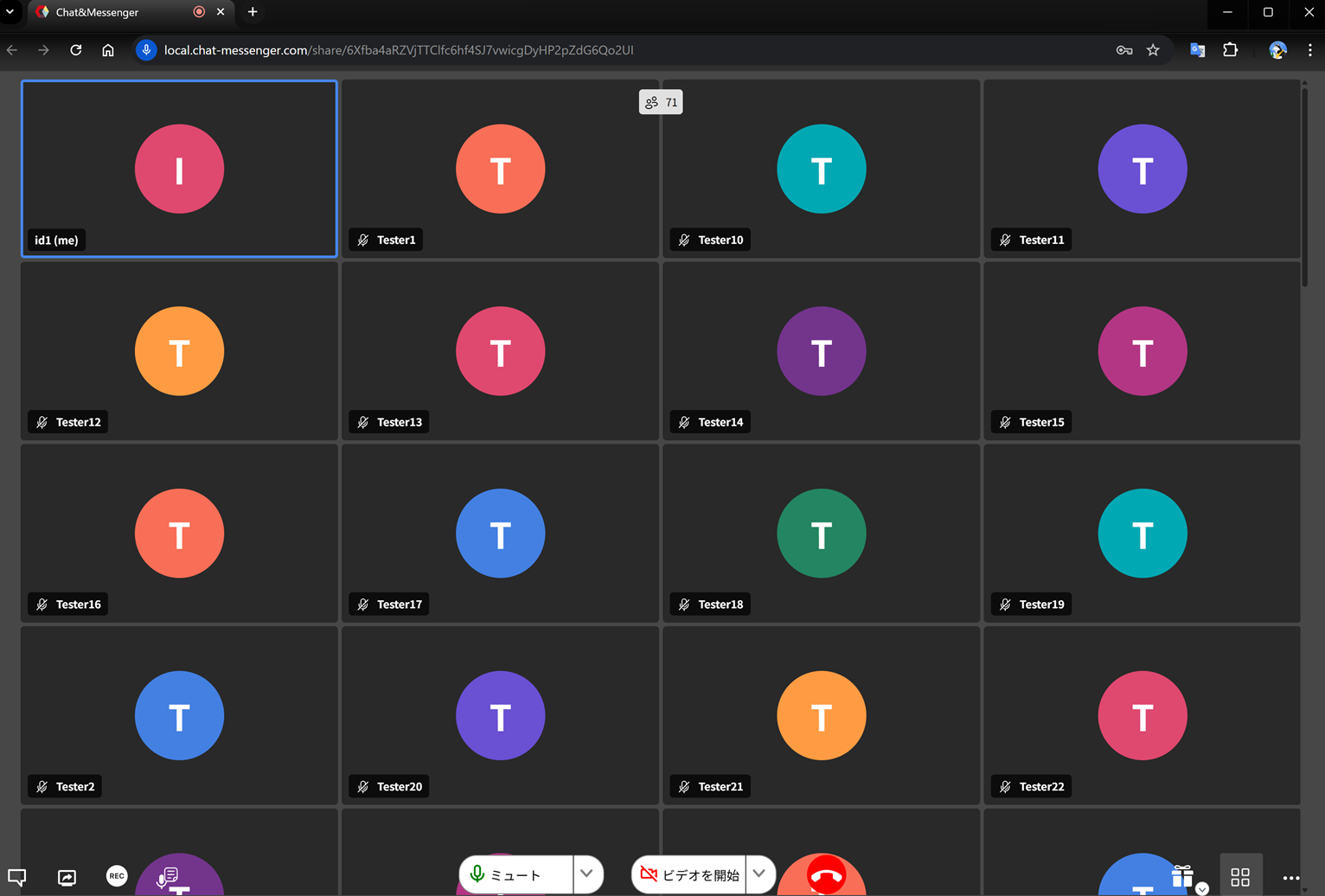
How to use load tools
1. Generate the meeting URL to be accessed using the load tool via Quick Web Conferencing.
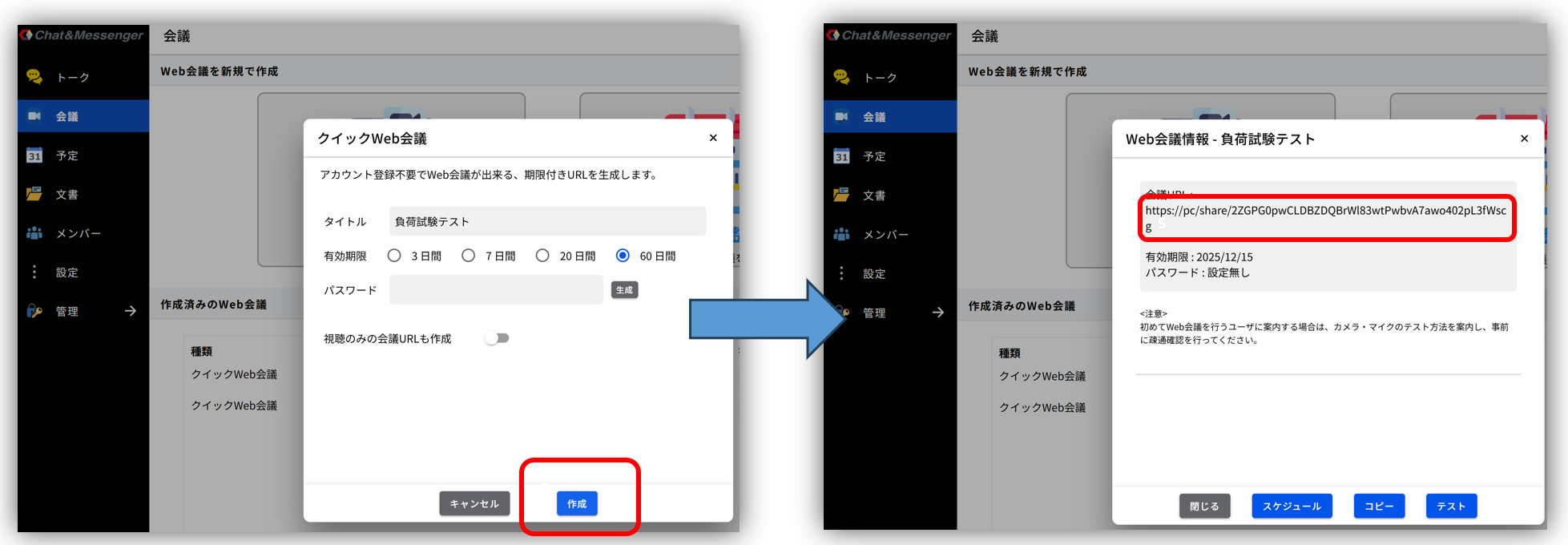
2. Download and extract MeetSimulator.zip
3. Start the load tool.
cd MeetSimulator
start.bat 会議URL 50
		第1引数・・・会議メニューで会議を作成して生成されたURL
		第2引数・・・疑似的に生成するユーザ数
If you are unable to participate in the meeting
If you are unable to join the meeting successfully, please launch MeetSimulator in browser view mode to retrieve detailed logs and identify the cause of the error.
cd MeetSimulator
start.bat 会議URL 50 false
		第1引数・・・会議メニューで会議を作成して生成されたURL
		第2引数・・・疑似的に生成するユーザ数
		第3引数・・・headless=false にしてUIを表示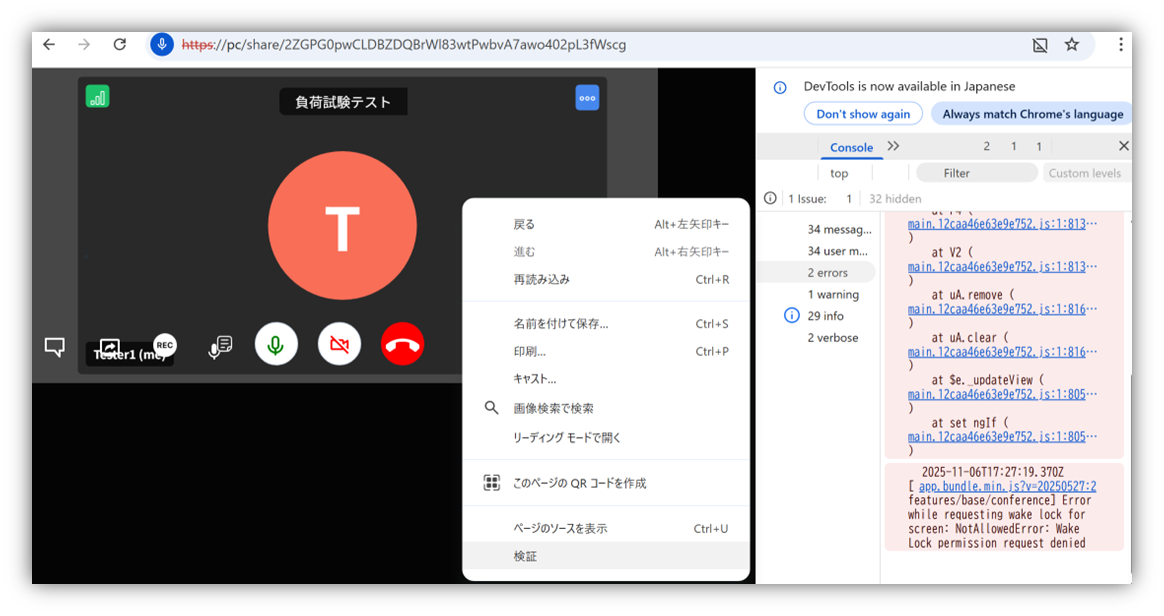
Right-click on the screen → "Inspect" → "DevTools" → "Console" → "errors" to check the error details.
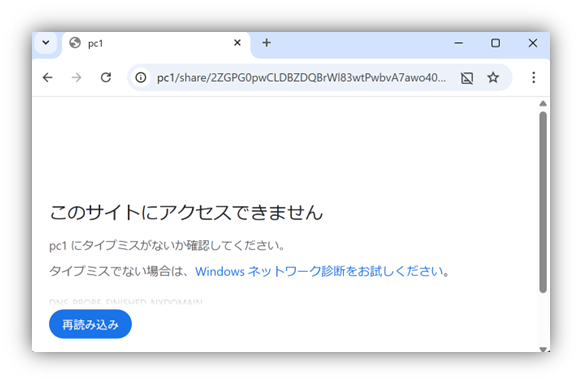
If you are unable to join the meeting, you may see a standard browser error screen; please use the information displayed on that screen as a clue.
Measurement perspective
Server Resource Status
When the maximum number of participants is reached, ideally, when you open Task Manager, the overall CPU, memory, and network usage of the OS should be less than 70%.
Client resource status
When the maximum number of participants is reached, ideally, when you open Task Manager, the overall CPU, memory, and network usage of the OS should be less than 70%.
Quality of web conferences
To check the quality of your web conference, please see the following information in the status screen after joining the meeting.
Packet Loss (Packet Loss Rate)
Please ensure that the audio/video loss rate is less than 2%.
| loss rate | Quality evaluation | Description. |
|---|---|---|
| 0-0.5% | Very good | Almost no problems. The audio is clear and the video is stable. |
| 0.5~2% | Acceptable (good) | There is a possibility of minor video block noise and audio dropouts. |
| 2-5% | Subtle (need to be careful) | The audio is becoming choppy and the video is becoming noticeably stuttered. |
| 5% or more | Bad (difficult meeting) | They're at a level where they can't even have a proper conversation. |
Bitrate (actual transmission/reception bandwidth)
Generally, the quality will fall within the following ranges, but manual verification is necessary to ensure that both audio and video are of appropriate quality for the meeting.
Sending (uploading) side
| Purpose | Recommended bitrate (kbps) | Description. |
|---|---|---|
| Voice (Opus) | 16-32 | The call quality is sufficient within this range. Further increases wouldn't result in any noticeable improvement. |
| Video in 360p | 300-700 | It is often used with smaller tile displays, allowing for stable transmission while keeping the load low. |
| Video 720p (HD) | 1,200–2,000 | This range is standard for typical web conferences. It offers a good balance between image quality and processing load. |
| Video 1080p (Full HD) | 2,000-3,500 | It offers high image quality but has high bandwidth and CPU requirements. Suitable for enterprise high-speed network connections. |
Receiving (downloading) side
- Speaker view (showing one person prominently): 3-4 Mbps is sufficient for stable viewing.
- When using tile view with many participants, you may need 6-10 Mbps.
Frame Rate
For sharing documents in a meeting, 5-10fps is usually sufficient for smooth playback.
Resolution
In tile view, the resolution automatically decreases depending on the number of participants, but for document sharing, 720p (1280 x 720) or higher provides sufficient quality.
Log storage on the server
The quality of web conferences can be logged on the server side. There are two types of log output methods, and each can be enabled by configuring it in the boot.ini file.
- Statistical log... Records quality statistics for users participating in web conferences at approximately 10-second intervals.
- Warning log...Statistical logs record values exceeding a threshold as warnings in the main log.
Record statistical logs
boot.ini
# Web会議の品質ログを記録
cam.enableCallStatsLogging=true
log file
CAMServer\sys\logs\yyyyMMdd_ConferenceID.log
Data Sample
datetime,userName,bitrate.upload,bitrate.download,bitrate.audio.upload,bitrate.audio.download,bitrate.video.upload,bitrate.video.download,packetLoss.total,packetLoss.upload,packetLoss.download,rttMs
2026/02/03 00:10:45,User,0,0,0,0,0,0,0,0,0,139
2026/02/03 00:10:53,Tester5,0,15,0,15,0,0,9,0,9,1
2026/02/03 00:10:53,Tester1,0,15,0,15,0,0,9,0,9,1
2026/02/03 00:10:53,Tester4,0,15,0,15,0,0,9,0,9,1
Item Description
bitrate.upload : 総アップロードビットレート(kbps 相当)
bitrate.download : 総ダウンロードビットレート(kbps 相当)
bitrate.audio.upload : 音声アップロードビットレート(kbps 相当)
bitrate.audio.download : 音声ダウンロードビットレート(kbps 相当)
bitrate.video.upload : 映像アップロードビットレート(kbps 相当)
bitrate.video.download : 映像ダウンロードビットレート(kbps 相当)
packetLoss.total : 全体のパケットロス率(% 相当)
packetLoss.upload : アップロード方向のパケットロス率(% 相当)
packetLoss.download : ダウンロード方向のパケットロス率(% 相当)
rttMs : エンドポイントから CAMServer までの RTT(ms)
Record a warning log.
If packetLoss.total is 5% or more, and rttMs is 200 or more, a separate warning can be recorded in the main log.
boot.ini
# 設定を有効化
cam.enableCallStatsWarning=true
# 5%、200 指定しない場合のデフォルト値、boot.iniで変更可能
cam.enableCallStatsPacketLossWarn=3
cam.enableCallStatsRTTWarn=100
log file
CAMServer\sys\logs\yyyyMM_application0.log
Data Sample
2026/02/02 02:43:14:[WARNING]:CallStats: Tester16 rttMs=213 会議ID
2026/02/02 02:41:32:[WARNING]:CallStats: Tester20 packetLoss.total=18% 会議ID