









summary
In an Active Directory environment, using Integrated Windows Authentication (Kerberos) allows users to use the same authentication credentials they use to log in to Windows.Automatic single sign-on (SSO) to CAMServer without requiring additional login to C&M. can.
Traditionally, this system required building using IIS/ASP.NET, but with this feature, CAMServer directly handles Kerberos authentication. This allows for a simpler configuration of SSO using integrated Windows authentication without the need for additional servers such as IIS.

SSO flow
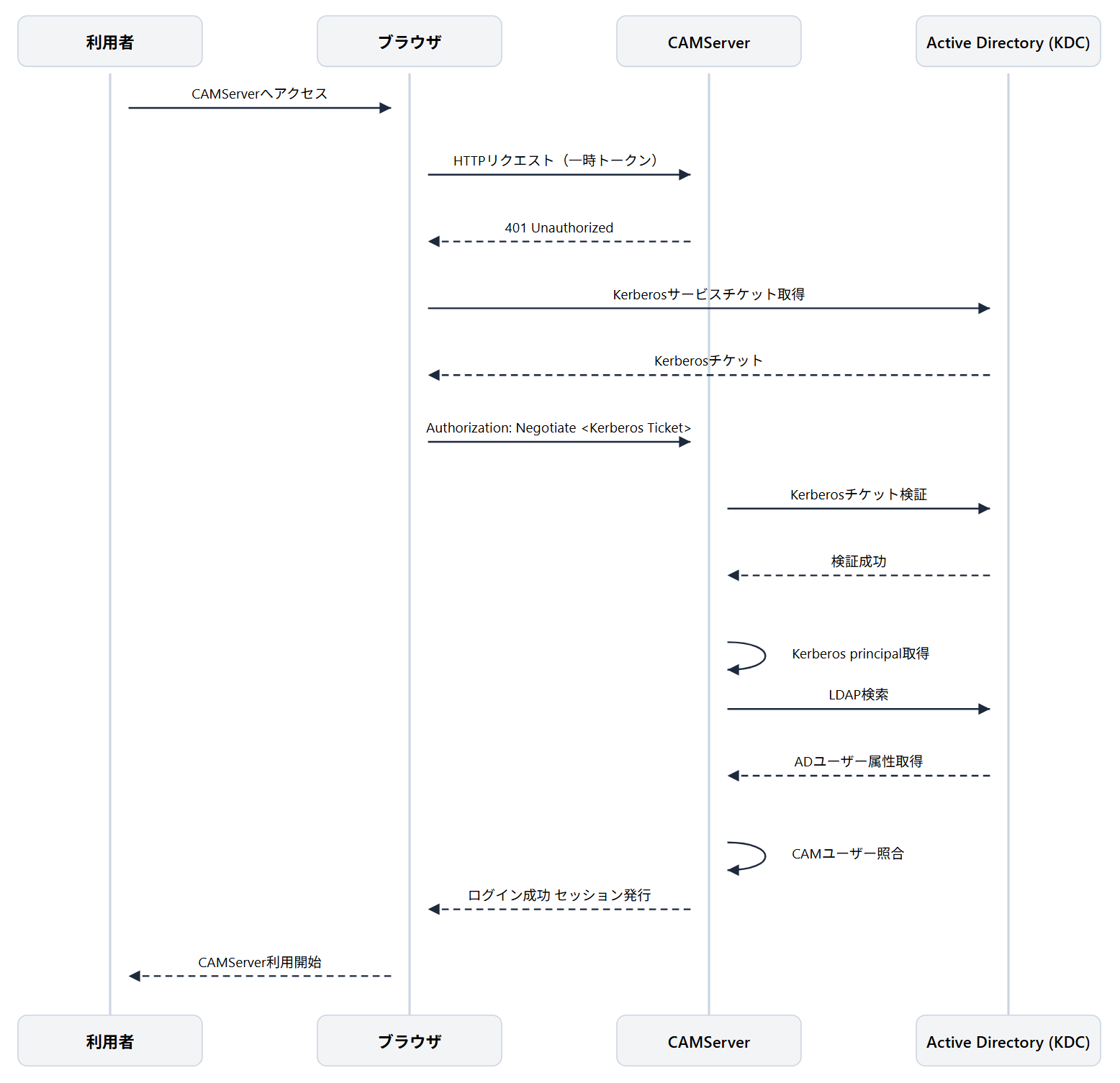
SSO processing flow
- Access CAMServer
The user accesses CAMServer via a browser. Upon access, a temporary token for the application is sent via POST. - Authentication Request
After verifying the temporary token, CAMServer requests Windows authentication (Negotiate) from the browser. - Obtaining a Kerberos ticket
The browser uses Windows logon information,
Obtain a Kerberos service ticket from the Active Directory KDC. - Sending a Kerberos ticket
The browser uses the acquired Kerberos ticket
The HTTP header is added and the message is resent to CAMServer. - Ticket Verification
CAMServer uses keytab to verify Kerberos tickets. If verification is successful, it retrieves the Kerberos principal contained in the ticket. - LDAP search and CAM user matching
The system performs an LADP search using the retrieved Kerberos principal to obtain user information from AD and compares it with the user registered in CAMServer. If a match is found, the login is permitted. - Login complete
CAMServer issues a login session,
Users can use CAMServer without displaying the login screen.
If you access the site using a domain name other than the FQDN used for Windows authentication, or if you access it from a PC that is not joined to the domain, login authentication will be performed on the command and management server (C&M).
Operating requirements
The following environment is required to use this feature.
Active Directory environment
- An Active Directory domain must be established.
CAMServer
- Ultimate PlanUsing
- The CAMServer must be accessible via its Fully Qualified Domain Name (FQDN).
- The Windows Server running CAMServer must be joined to an Active Directory domain.
To check which domains an existing Windows Server is joined to, go to "Server Manager" → click "Local Server" in the left menu → click "Computer Name" and refer to the domain field.
Users
- The user's PC must be joined to a domain and logged into Windows via the domain.
- SSO-eligible users are those whose user ID is UserPrincipalName (You must be pre-registered with CAMServer in UPN format (e.g., user@camtest.com))
Supported browsers
Windows authentication SSO is available in the following browsers.
- Microsoft Edge
- Google Chrome
- camapp
Regarding load balancer configuration
Windows authentication (Kerberos) is an authentication method that uses HTTP authentication headers for negotiation, so CAMServer must remain running on port 443, and the load balancer must be L4 (TLS passthrough).
Recommended configuration
User ──HTTPS──▶ L4 Load Balancer (TLS Passthrough) ──HTTPS──▶ CAMServer(443)
NG configuration
User──HTTPS──▶ L7 Load Balancer (SSL Termination) ──HTTP──▶ CAMServer(8080)
Construction Procedure
The following setup procedure will be explained based on the "Configuration Example".
Configuration example
- FQDN for Windows authentication:
https://test.chat-messenger.com - Active Directory Domain Name:
camtest.com - Service account:
cam-svc@camtest.com(CAMTEST\cam-svc)
SPN Registration Overview
SPN (Service Principal Name) is a name that uniquely identifies a specific service on Active Directory in Kerberos authentication. When accessing with FQDN, registering SPN allows the client to correctly request a Kerberos ticket for the service to be accessed.
for example https://test.chat-messenger.com When accessing the service, the client (browser) requests a ticket from Active Directory stating, "I want to connect to the service called HTTP/test.chat-messenger.com." Active Directory checks which account the SPN is associated with and issues the corresponding service ticket. If the SPN is not registered correctly, Kerberos authentication will fail.
Service Account
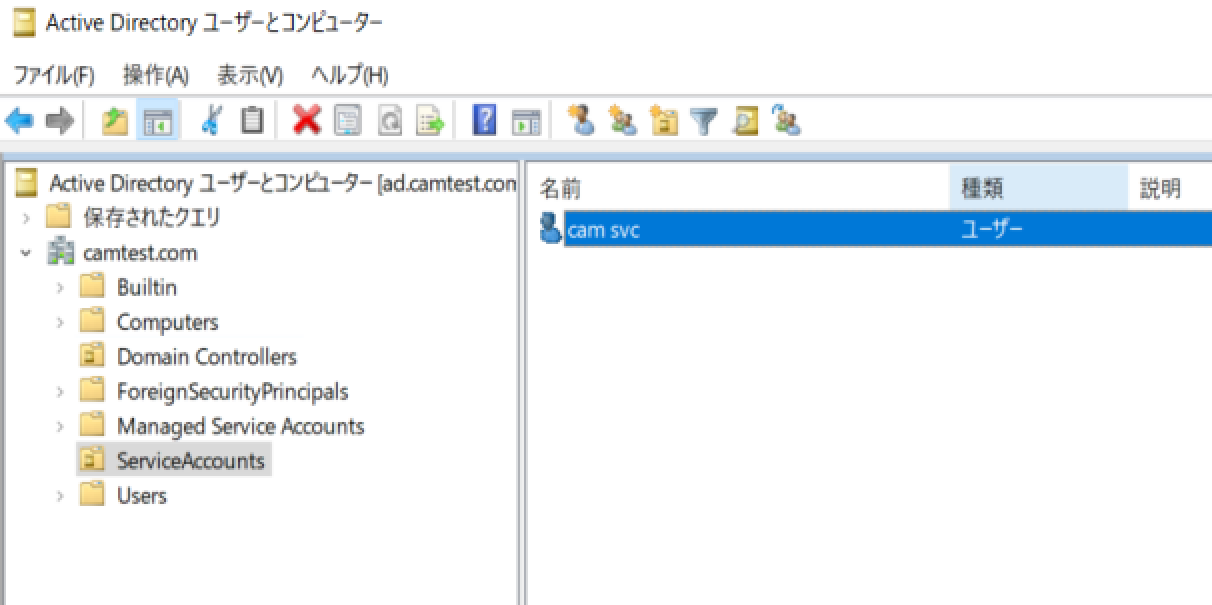
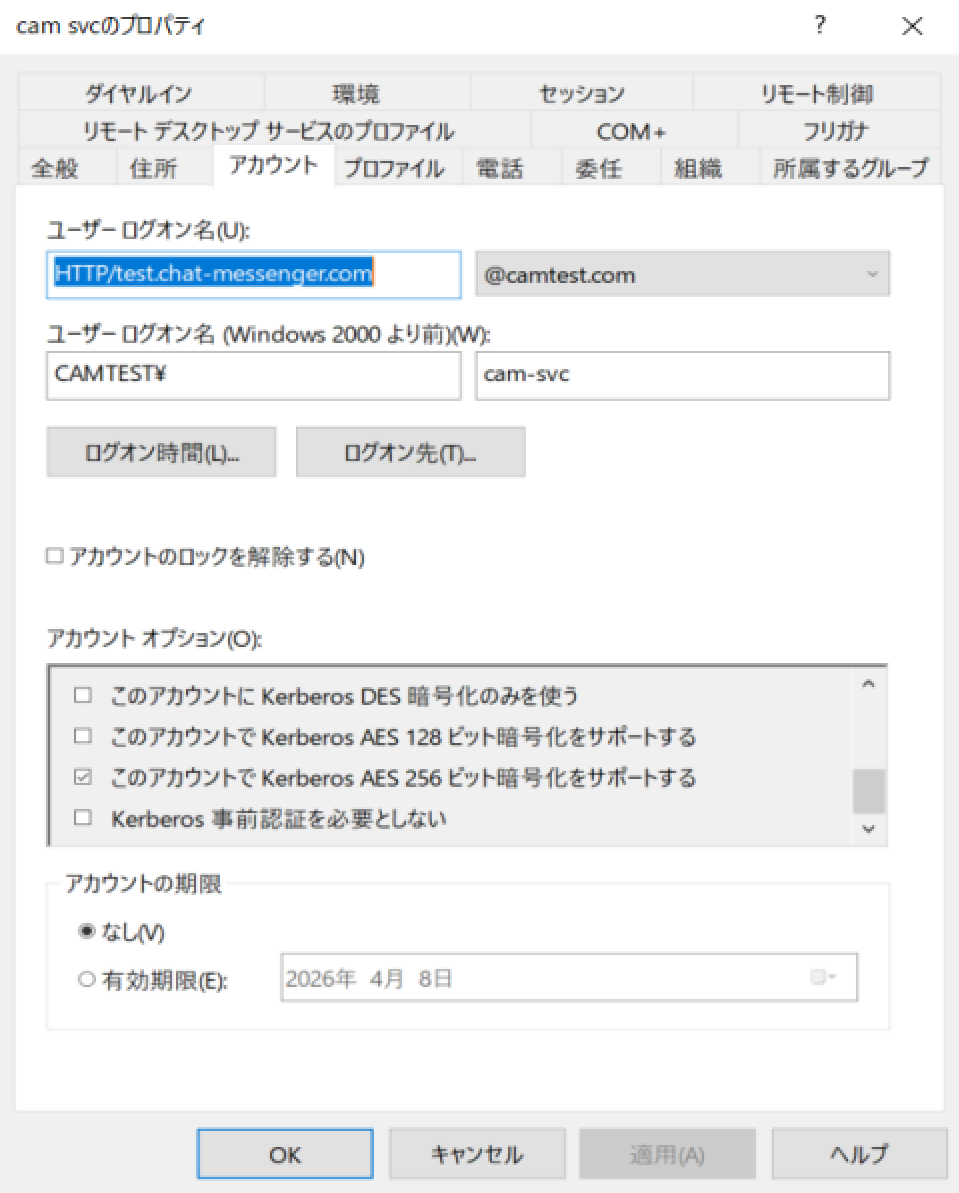
Create a service account for Kerberos authentication. While this is possible with a domain user, it's generally recommended to separate user and service accounts to prevent accidental errors and clarify the scope of password policy application.OU=ServiceAccounts Like, OU Users In distinction from Active Directory domain controllers,cam-svc Create a new one.
Please check the following in your account options.
- Make your password never expire
- This account supports Kerberos AES 256-bit encryption.
Register SPN with service account
setspn -S HTTP/test.chat-messenger.com CAMTEST\cam-svcRegister the SPN using the service account created above.
- Any terminal that is part of the domain can be used. However, domain administrator privileges are required.
・The SPN is also used in HTTPS communication.HTTP/hostnameYou must register in the format:
Use the following command to verify that the SPN is registered.
setspn -L CAMTEST\cam-svcCreate keytab
To enable CAMServer to validate Kerberos tickets, create a keytab file for the service account. Run the following command on the Active Directory management server:
ktpass /out CAMServer\config\windowsAuth\cam.keytab /princ HTTP/test.chat-messenger.com@CAMTEST.COM /mapuser CAMTEST\cam-svc /ptype KRB5_NT_PRINCIPAL /crypto AES256-SHA1 /pass "*******"CAMServer Settings
To use Windows authentication, add the following to the CAMServer configuration file (boot.ini). Please replace each value according to your environment.
# Kerberos レルム(通常は Active Directory ドメイン名を大文字で指定)
# 例: camtest.com ドメイン → CAMTEST.COM
cam.windowsAuth.realm=CAMTEST.COM

# Windows認証を行うFQDN
cam.windowsAuth.FQDN=test.chat-messenger.com

# Kerberos KDC
# 通常は Active Directory のドメインコントローラのFQDN。ポートTCP/UDP 88 は Kerberos 標準ポートでリッスンされている
cam.windowsAuth.kdc=ad.camtest.com:88
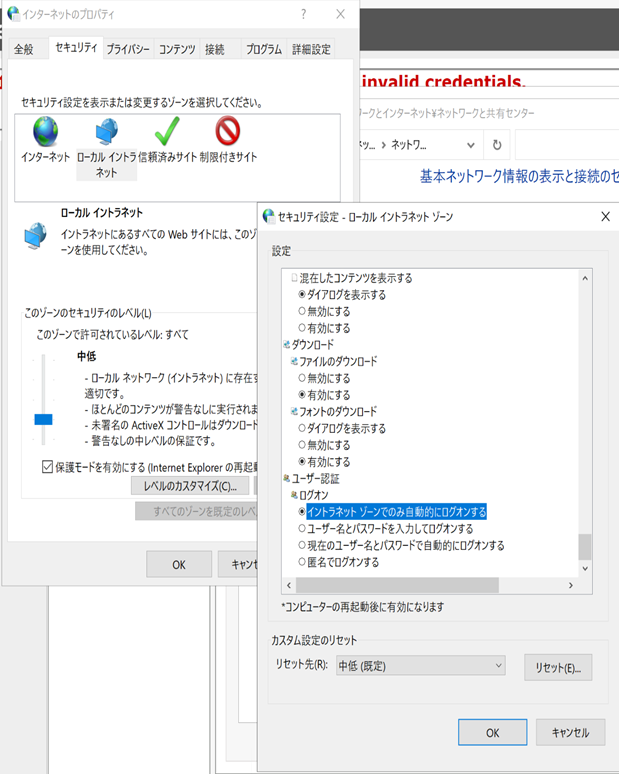
Internet Options Settings
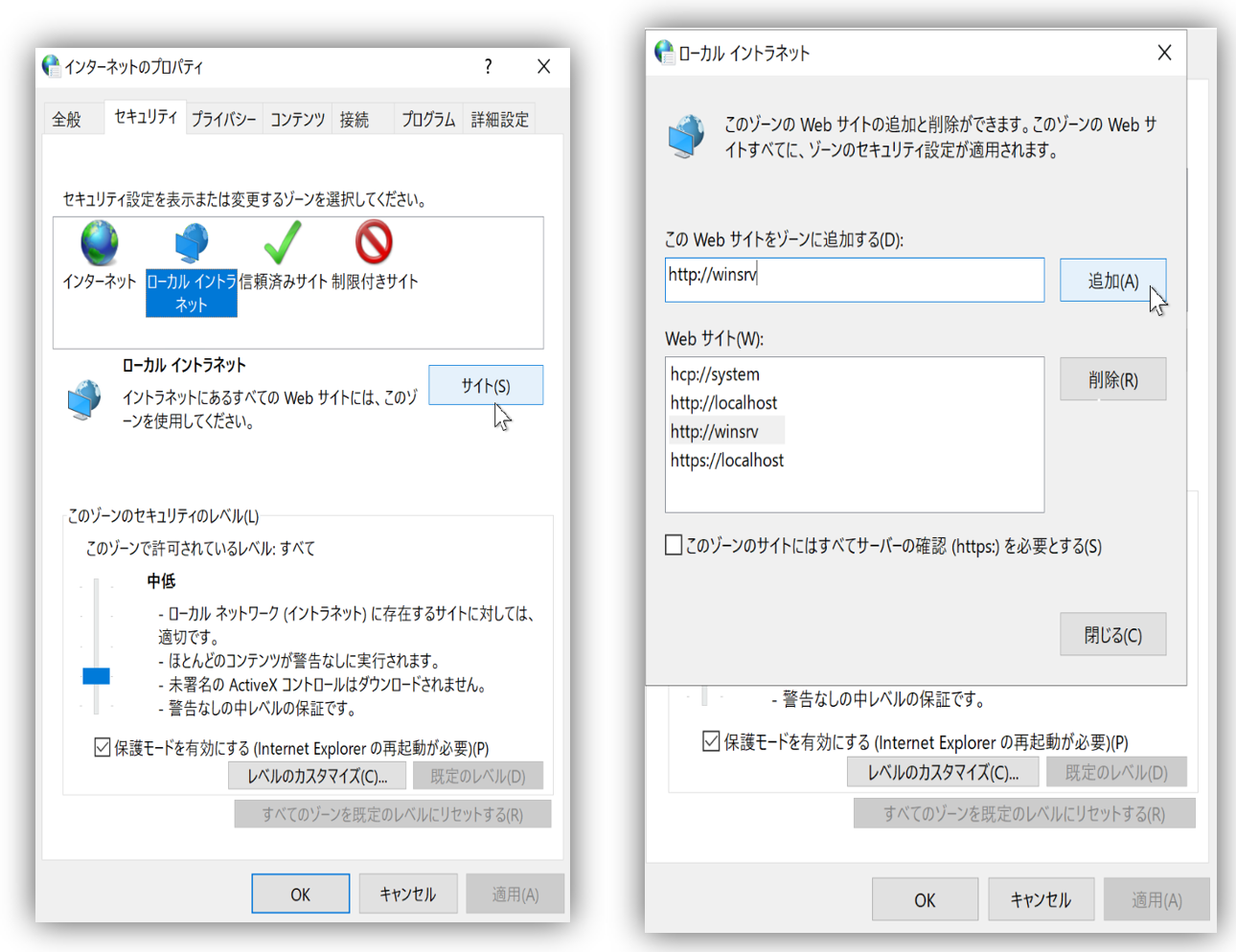
Add the CAMServer's FQDN to the intranet zone.
Select Internet Options, click the "Security" tab, and select "Local intranet." Click the "Sites" button, select "Advanced," and add the site's URL (https://test.chat-messenger.com).
Check for automatic logon
Click "Custom Level" and make sure that "Automatic logon in Intranet zone" is selected under "User Authentication" -> "Logon".
Migration from SSO using IIS Integrated Windows Authentication
- Uninstalling IIS functionality (Server Manager > Admin > Remove Roles and Features)
- Uninstalling the ASP.NET Core Hosting Bundle
- The service account isThis account supports Kerberos AES 256-bit encryption."check
- keytab create
- In the Internet Options settings, add the FQDN of CAMServer to the Intranet zone (if it hasn't been added yet).
- If the load balancer was connected to CAMServer at L7, place an SSL certificate on CAMServer and connect at L4.