









Active Directory Linkage Overview
On-premise CAMServer Enterprise makes ID authentication very easy by providing Active Directory linkage. The following can be achieved
- Web App VersionActive Directory Authentication ID is initially displayed during login authentication when using
- Passwordless authentication and OS passwords can be used for ID authentication.
- CAMServer uses Active Directory's LDAP protocol to determine if identity authentication is successful.
Active Directory ID Linkage
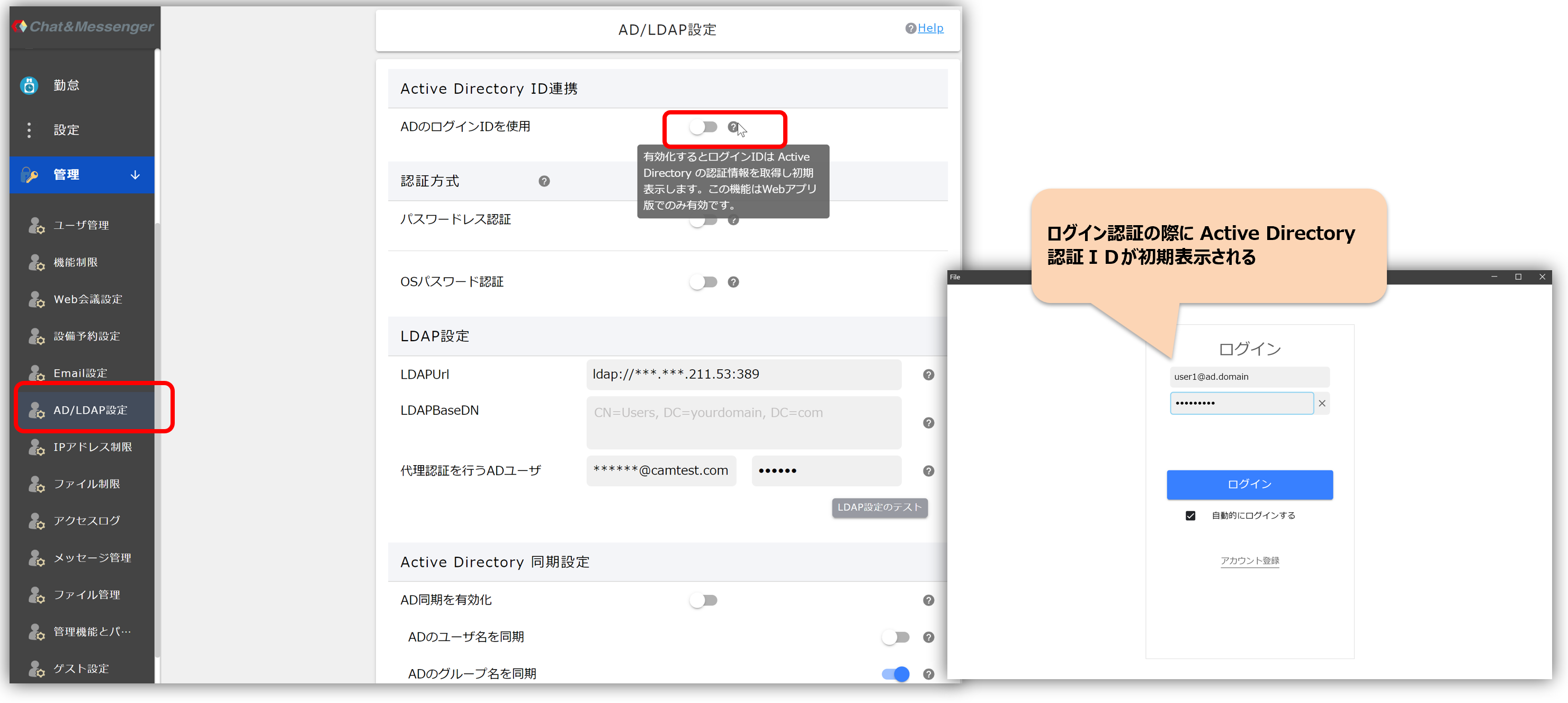
When Active Directory ID Linkage is enabled, the login ID is automatically set if the user is Active Directory authenticated.
Authentication method
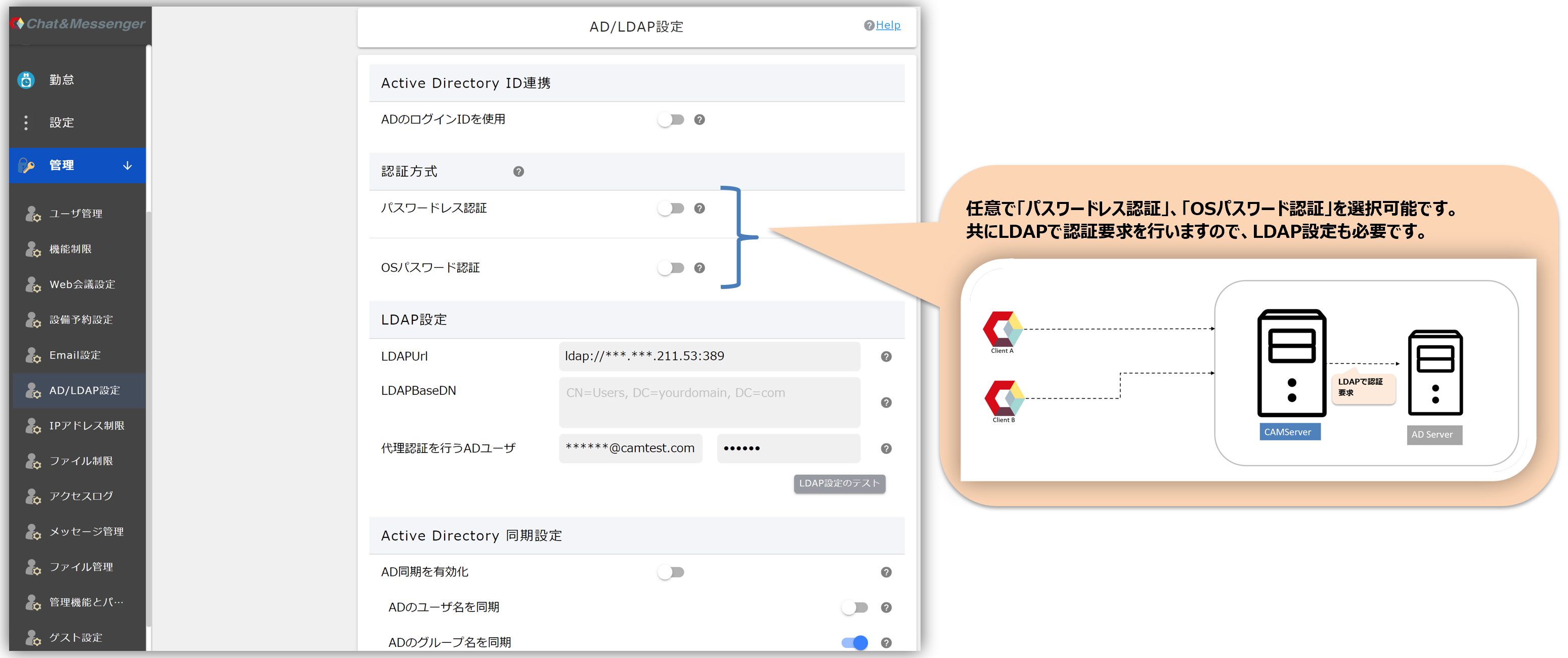
After enabling Active Directory ID linkage, you can optionally select "Passwordless Authentication" or "OS Password Authentication".
Passwordless Authentication
When you are logged in to AD, the information that can be obtained is encrypted and used as an authentication token, making it possible to log in to the service without a password.Before enabling this setting, you must configure the "AD user to perform proxy authentication" and "Test LDAP settings".
interpoint (interword separation)If this setting is activated, access will only be available in the Web App version.
- If there is a configuration error, no one will be able to log in. However, you can disable "passwordless authentication" by setting cam.disableADPasswordless=true in the CAMServer/boot.ini file and starting CAMServer. After disabling and starting, review all settings and be sure to perform an "LDAP setting test" before enabling "passwordless authentication". After enabling it, delete cam.disableADPasswordless from the cam.ini file and restart CAMServer.
OS Password Authentication
The OS password is used for user authentication.
When registering a new user, please set a temporary password and register it. Once "OS password authentication" is successful, authentication will be considered OK, and the registered password on C&M will be overwritten.
LDAP Settings
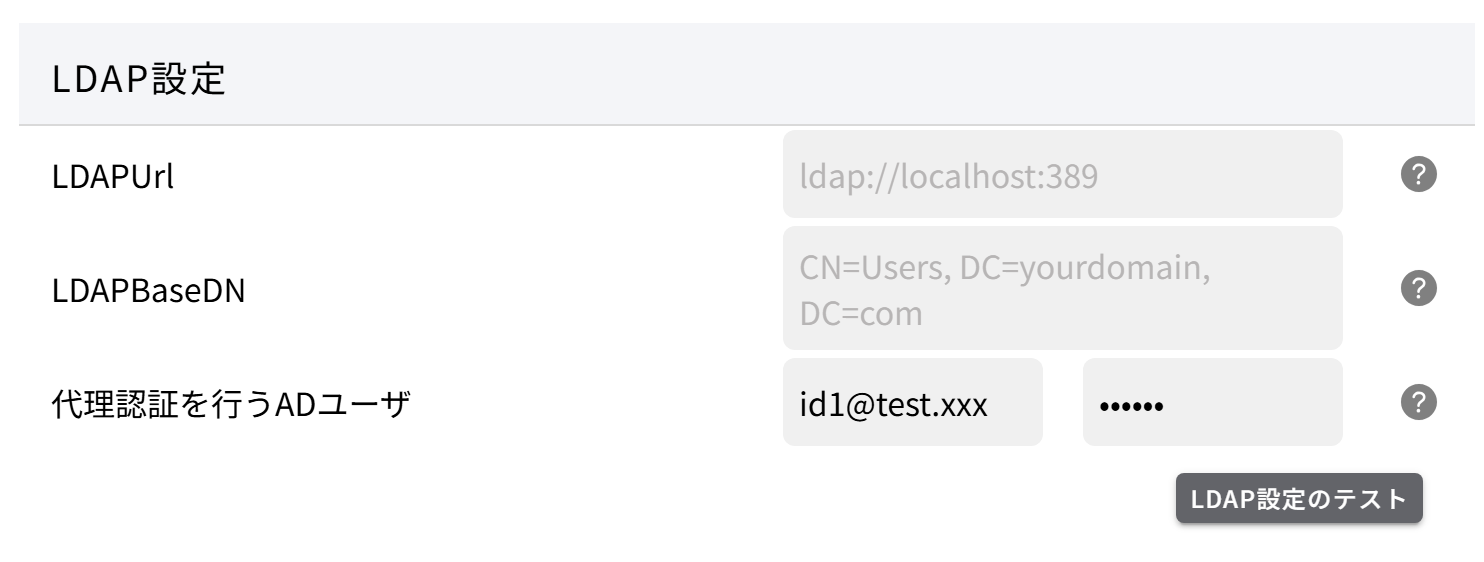
LDAPUrl
This is the URL for searching the ActiveDirectory server using LDAP. Specify the address and port in LDAPUrl as necessary. If blank, ldap://localhost:389 You can access it via port 389, which is the default for ldap.
LDAPBaseDN
LDAPBaseDN is a value that specifies the starting position for searching for a user in the object tree of the LDAP server. Multiple LDAPBaseDNs can be specified, separated by newlines.
If not specified
If not specified, the LDAPBaseDN is automatically generated from the domain of the user ID and the entire domain is searched. For example, when searching for a user named user1@camtest.com, the LDAPBaseDN would be "DC=camtest, DC=com".
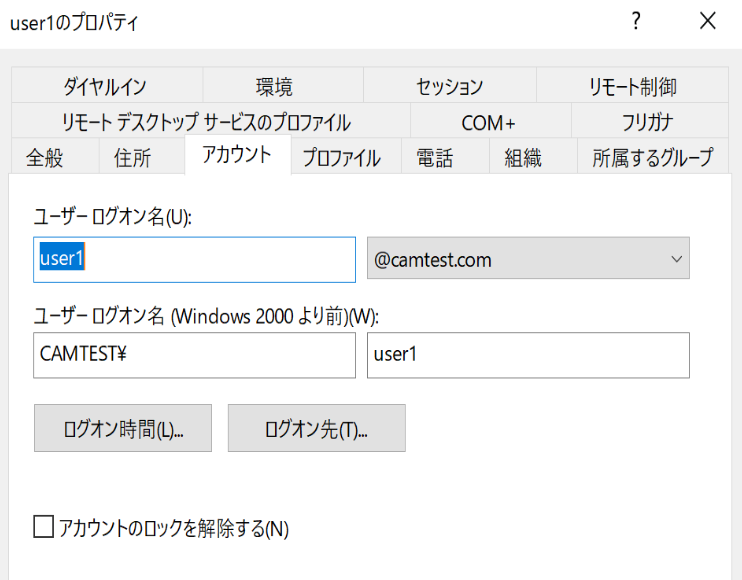
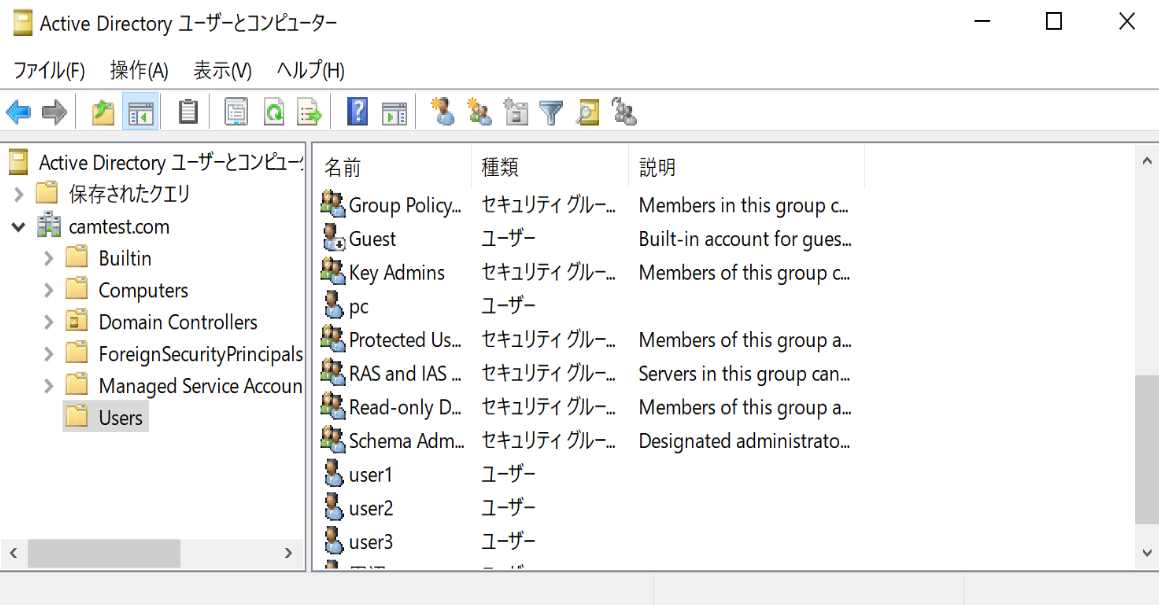
If specified
If users are located within organizational units (OUs), you can narrow down your search by specifying their individual BaseDNs. The diagram below shows a setting that searches the organizational units (OUs) of the Sales Department and the Accounting Department.
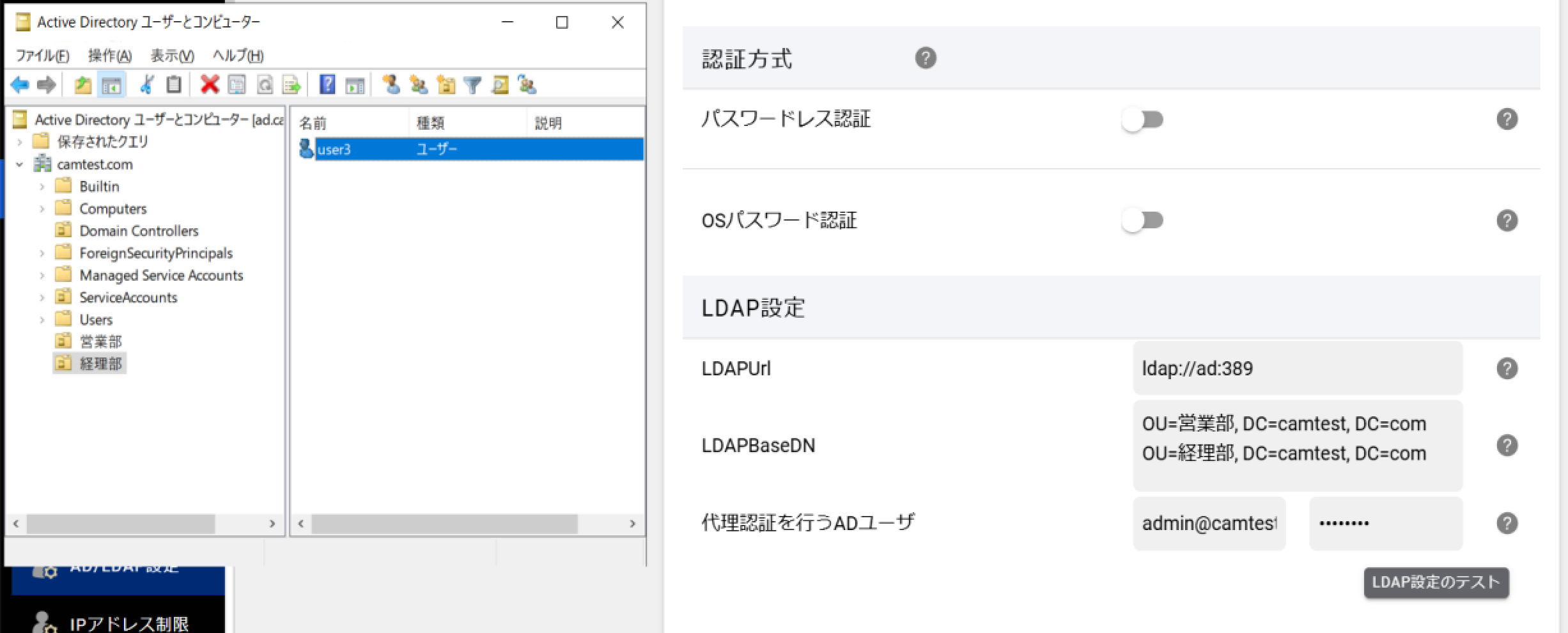
Testing Delegated Authentication AD User and LDAP Settings
When using SSO or passwordless authentication with Windows Integrated Authentication, configure an AD user to perform proxy authentication and then perform a "Test LDAP Settings".
In the above authentication process, an internal LDAP search is performed to verify whether the AD user performing proxy authentication is a legitimate AD user.
Active Directory synchronization settings
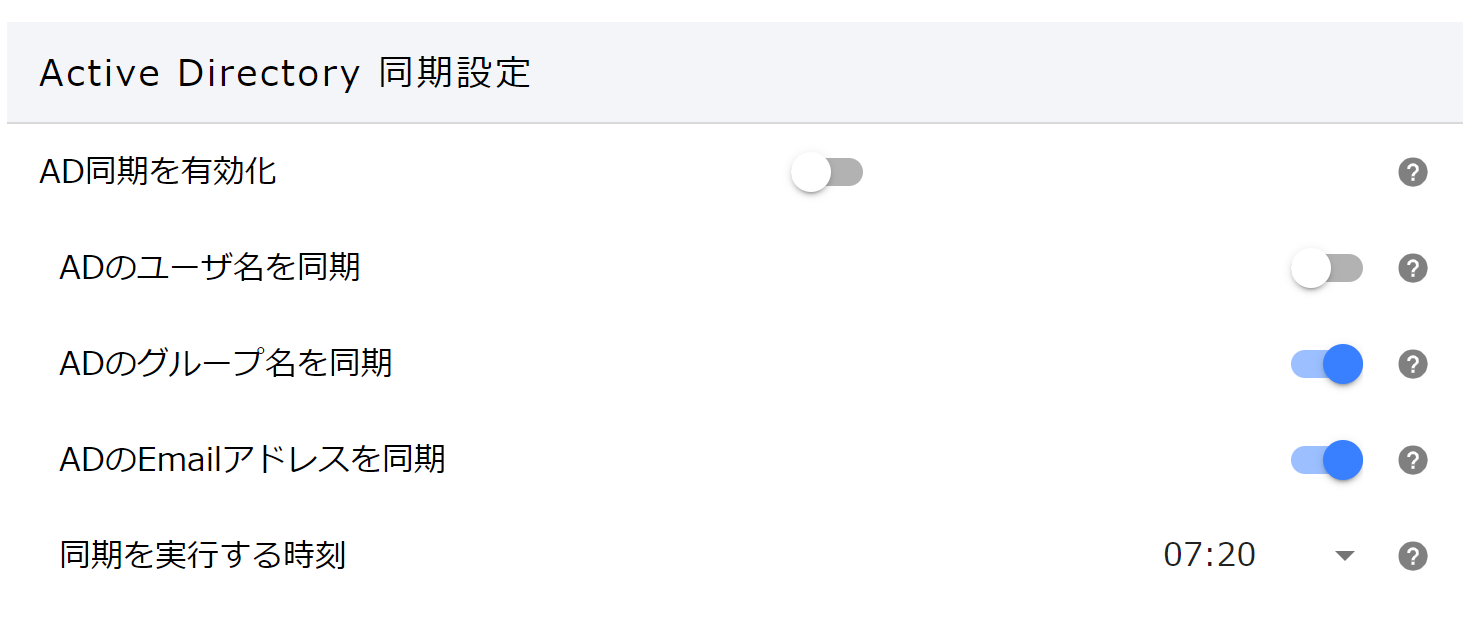
When Active Directory synchronization settings are enabled, information will be retrieved from Active Directory at the specified time and user information in Chat&Messenger will be updated.
The information to be updated is below.
- Username...AD displayName attribute
- Group name...AD department attribute
- Email・・・AD email attribute
FAQ
Can I create a user that does not exist in Active Directory?
If you do not select "Passwordless" as the authentication method, you can create an account on the Chat&Messenger user management screen and log in even if the user does not exist in Active Directory.
Can I synchronize with Active Directory to automate user addition?
Currently, Chat&Messenger does not automatically add or delete users based on Active Directory users. Therefore, even if Active Directory linkage is enabled, the administrator must create Chat&Messenger users using the user registration screen on the management screen or by uploading CSV.
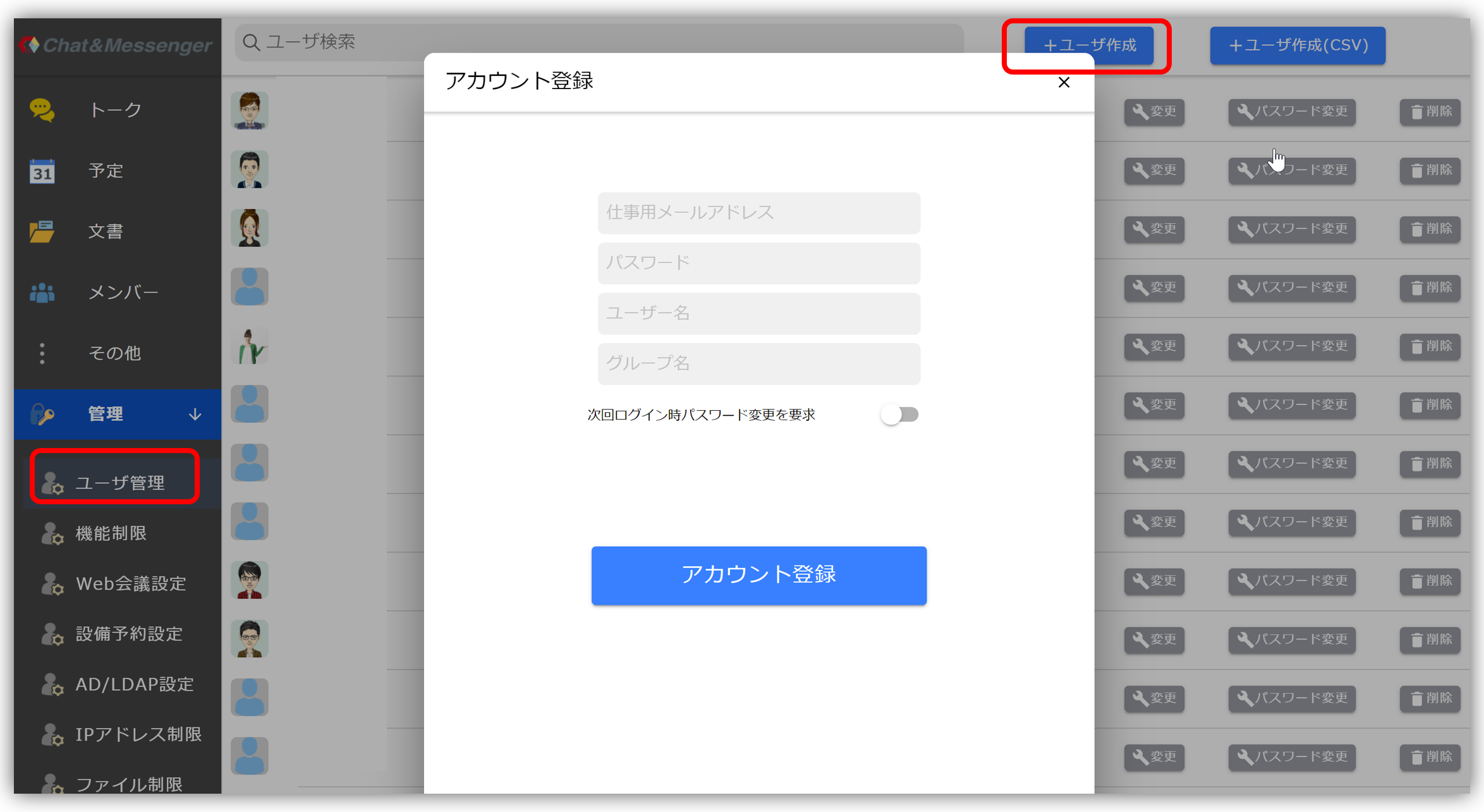 | 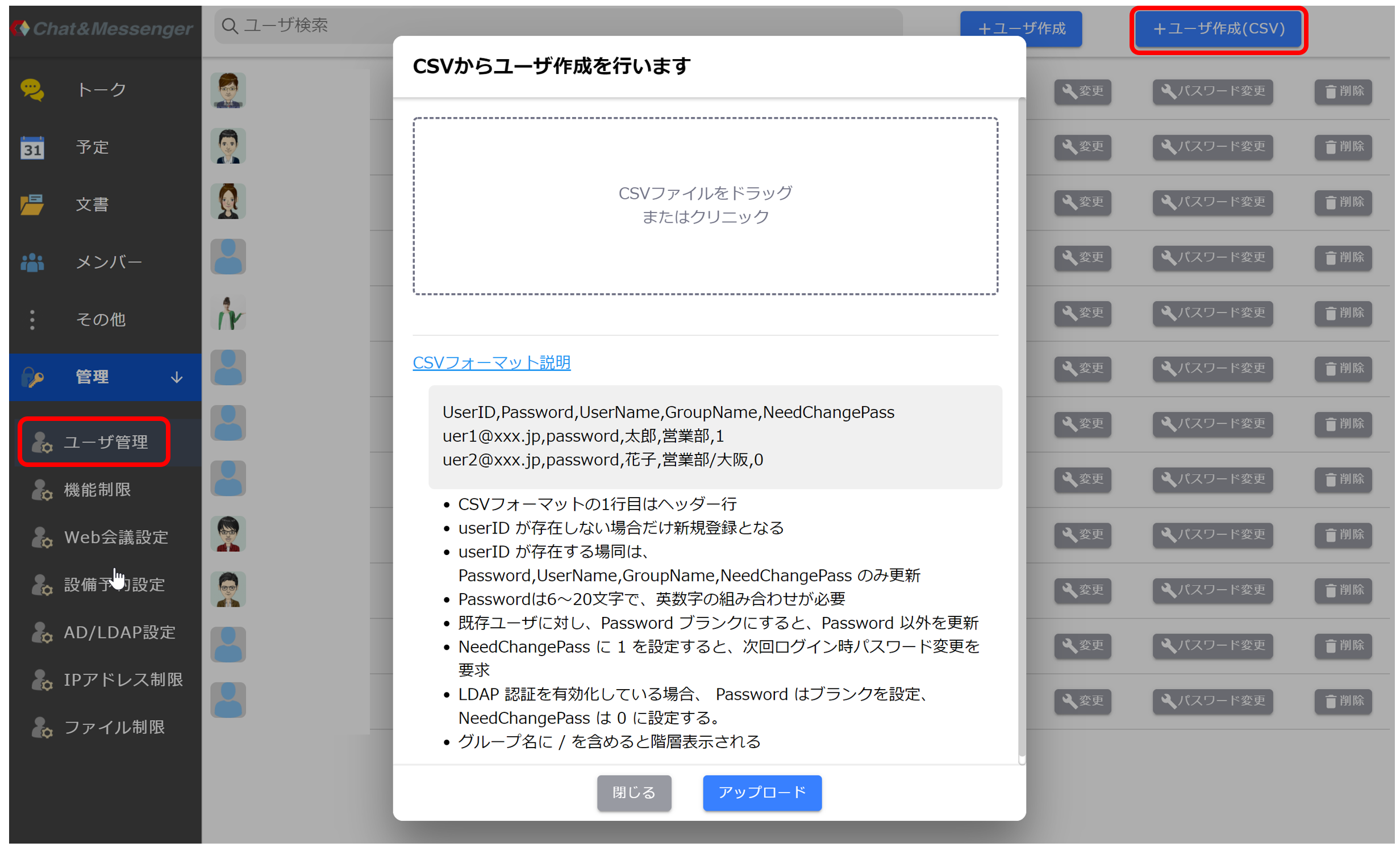 *CSV upload only adds/changes Chat&Messenger users and does not delete them. Please delete one item at a time from the management screen. |
I want to get a list of Active Directory users and create a CSV.
You can obtain a list of Active Directory users using PowerShell's Get-ADUser. of this list UserPrincipalName Please create a CSV file using the User ID (work email address) on Chat&Messenger.
> Get-ADUser -Filter {objectClass -eq "user"} -Properties info

DistinguishedName : CN=user1,CN=Users,DC=***,DC=com
GivenName         : ユーザ1
Name              : user1
ObjectClass       : user
ObjectGUID        : bf84cdab-2c21-44cf-aaca-afe493d97f2a
SamAccountName    : user1
SID               : S-1-5-21-3698402442-2374923176-*****-1104
Surname           : ユーザ1
UserPrincipalName : user1@***.com

DistinguishedName : CN=user2,CN=Users,DC=***,DC=com
GivenName         : user2
Name              : user2
ObjectClass       : user
ObjectGUID        : 482450a4-482a-40ac-b89b-434605f45571
SamAccountName    : user2
SID               : S-1-5-21-3698402442-2374923176-*****-1105
Surname           : テスト
UserPrincipalName : user2@***.com

# AD users のリストを CSVで出力
> $users = Get-ADUser -Filter {objectClass -eq "user"} -Properties UserPrincipalName, GivenName
> $selectedUsers = $users | Select-Object UserPrincipalName, GivenName
> $selectedUsers | Export-Csv -Path "C:\path\to\output\users.csv" -NoTypeInformation